Official development blog
[ Latest Cogmind Release Notes: Feb 2026, "Unchained More" ]

Ally Orders

Allies were previously touched upon in a post last year when factions were first added to the game. Since then they’ve been waiting on the sidelines for someone to tell them what to do.

Now you can do just that.

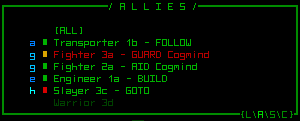
First it took a re-working of the top-center console area to make it the truly multi-functional window it was intended to be. Using F-keys or the menu at the bottom right you can now switch from the “combat calculation reports” to your list of allies (additional situational windows are planned for this area).
cogmind_allies

Here you can view all the allies with which you are currently in contact, see their current status and what they’re up to, and give them new orders.

Gathering allies won’t be required. In fact, from a strategic point of view it may work against you in some situations as having a large posse following you everywhere wreaking havoc is sure to draw unwanted attention. While not everyone will want to have semi-autonomous followers to worry about, for those who would enjoy some friendly company I’m making the interface as convenient as possible.

Console-based Interaction

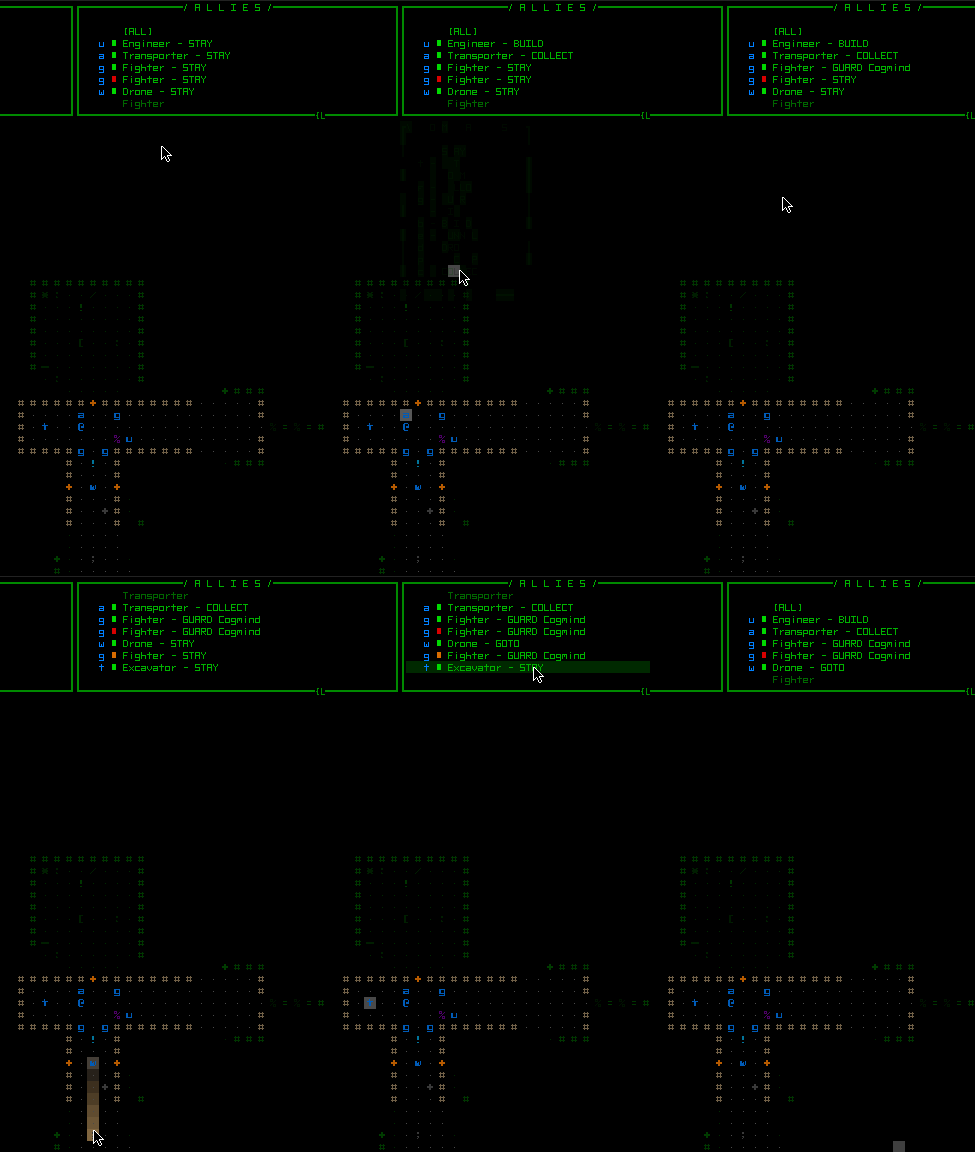
Click on any ally to open a context menu that shows what orders apply to them.
cogmind_ally_orders_console

Giving orders. Notice that while hovering over a given ally, their position on the map is also highlighted.

To give the same order to all your allies simultaneously use the “ALL” button, a quick and easy way to tell everyone to go somewhere, or to protect you, etc. It will filter out any allies for which the instruction does not apply (for example, unarmed robots will keep doing what they were doing if you issue an ally-wide order to “guard our hauler”).

Allies on the list will appear in red if incapable of fulfilling their purpose (a tunneler class bot that’s had its mining laser shot off, for example).

Selecting an order that needs a target will require you choose one on the map.

Map-based Interaction

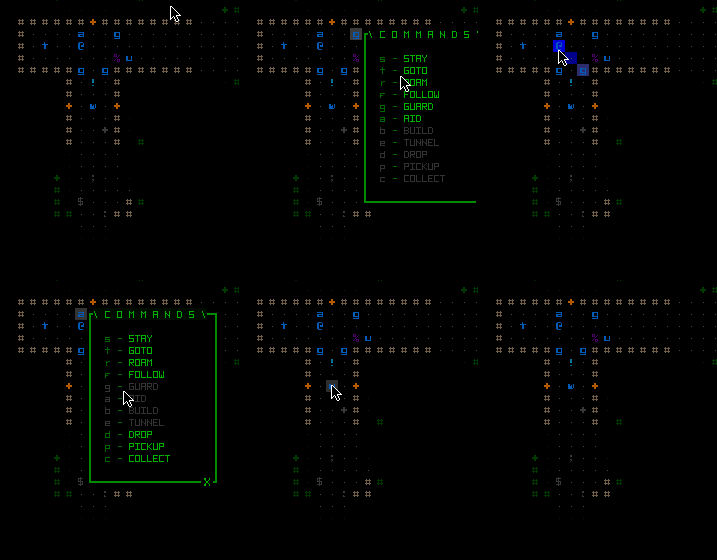
Alternatively you can also issue orders directly on the map itself with a shift-right click on the ally, which will open the same context menu right there.
cogmind_ally_orders_map

Giving orders on the map. Note that while hovering over each ally, they are highlighted in the console as well.

Order Visualization

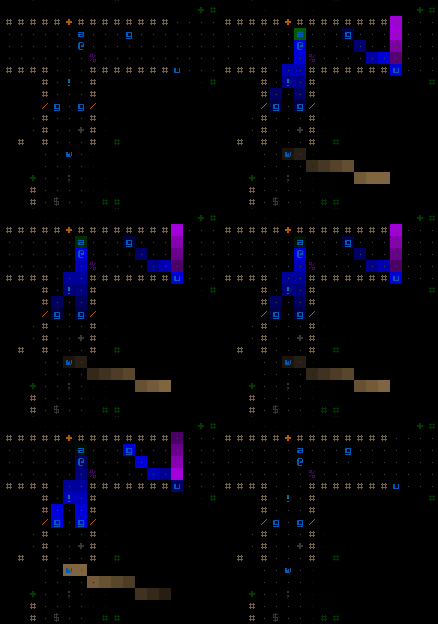
To view all pending orders directly on the map, hold shift-alt-‘o’ or hover the cursor over the ally list’s “ALL” button. This will highlight each unit in a different color based on their order, and connect them to their target via a line, if applicable.
cogmind_ally_orders_visualize

The builder (u) on the right is going to build a wall, guarded by the nearby grunt (g). Two other grunts are guarding Cogmind, who is standing next to a hauler (a) which is preparing to roam the map and collect parts. A watcher (w) drone to the south is about to head around the corner.

Mechanics

The order list as it stands now:

  • STAY: Stay at current position. Combat robots will still fight back and even chase down enemies, so for them this is equivalent to “defend.”
  • GOTO: Move to target location, then STAY on arrival.
  • ROAM: Wander the map doing whatever they want. For combat robots this is equivalent to “hunt” since they’ll engage and chase down any hostile targets.
  • FOLLOW: Follow Cogmind.
  • GUARD: Follow a specified robot and prioritize attacking enemies that attack it.
  • AID: Follow a specified robot and prioritize attacking enemies it attacks. For the repair bot (not yet implemented), this will instruct it to assist the target with repairs.
  • BUILD: Build makeshift wall barriers from current position to a designated target location.
  • TUNNEL: Dig a tunnel from current position to a designated target.
  • DROP: Drop all inventory items, then ROAM nearby. The latter command is automated so that your haulers will get out of the way after unloading their inventory, staying out of your way in case you want to access the parts.
  • PICKUP: Collect any items within Cogmind’s field of vision (i.e. nearby), then FOLLOW once their inventory is full or there are no more items to collect.
  • COLLECT: Wander the map and collect items, then FOLLOW once their inventory is full.

The list will be expanded as new unit types with unique behavior are added.

You can issue orders to as many allies as you want--doing so doesn’t require any time, and any new orders will simply override previous orders.

To enable you to differentiate allies from one another when they are of the same class, each will be given a unique name based on their class and the location and sequence in which they joined. You can see an example in the first image, since it’s actually the mockup on which the design was based, but the game doesn’t do this yet since there are not yet any methods to gain allies--I’ve just hard-coded some for testing. A player rename feature can be added later if desired.

One caveat to the order system is that you can only see and order allies that are currently within your field of vision. Cogmind is a roguelike and we’re trying to steer clear of excessive micromanagement RTS territory. This design decision is a bit “gamey,” but good gameplay has to trump realism, this being a game, after all ;) The good news is you can expand your visual range around corners and further away (up to a certain limit) by launching remote control drones.

A disadvantage of letting non-combat allies out of your area of influence is that if they encounter enemy Programmers they may be reprogrammed. This and other facets of electronic warfare may come into play later, but none of it will be designed or implemented until work begins on the overall enemy behavior.

One final note about the interface: While the above introduction focuses on mouse control, as usual every command is also possible via the keyboard. Pressing ‘o’ enters “order mode” which automatically opens the ally list and shows a column of numbers 0~5 to their left. Pressing an ally’s corresponding number opens their context menu, in which you can see that each order has an associated letter command. Pressing ‘o’ while highlighting an ally in look mode will also open their order menu directly.
Posted in Design | Tagged , , | Leave a comment

Ambient Sound

Sound plays an important role in Cogmind, perhaps setting it apart from a majority of ASCII roguelikes. While sound will likely have little or no direct influence on the gameplay mechanics themselves, it still adds an important dimension to the experience since immersion is the primary focus of the game’s design. (Remember, you are the Cogmind!)

There are of course sound effects related to major actions like shooting, as well as other spot sounds like projectile impacts, explosions, terrain destruction, door operation etc., but those don’t do as much for the atmosphere as ambient sound.

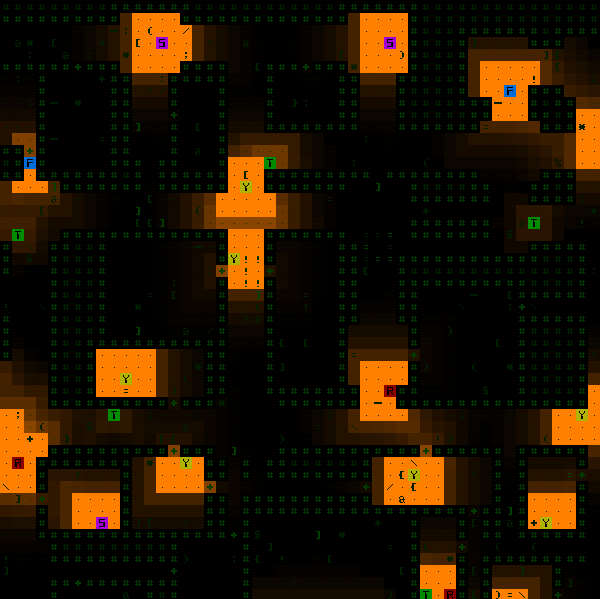
Each map will feature some amount of global ambiance that reflects your location, be it the factory levels or somewhere deep in the caves. In addition to that we now have a complete system for sourced ambient sounds. These are the sounds that originate from specific props in the environment, like machines. Since we aren’t doing videos yet, the only way you can check out the sound is by looking at it =p

Cogmind Ambient Sounds

In debug mode looking at the sound emitted by randomly placed test machines all playing one of two test ambient sounds.

Brighter orange represents a higher volume. You’ll see that line of sight is not necessary to hear an object--sound properly turns corners. Each piece of terrain also has its own sound dampening properties, so in this example thick earth walls are blocking all sound while doors muffle sound by 50%, allowing the remainder to continue to propagate.

Similarly, action-related sounds (projectiles, explosions, etc.) all have distance-based volume as the sound takes the least muffled route to the player.

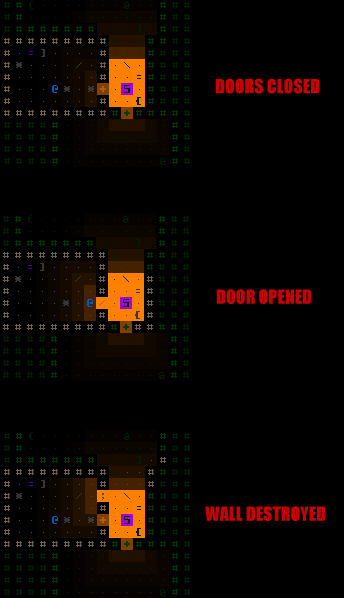
Sourced ambient sound propagation is not static, either, changing as the environment around it changes. This is absolutely essential since the environment is completely destructible and dynamic, not to mention simply opening a door will increase the perceived volume of whatever was behind it.

Cogmind Dynamic Ambient Sounds

Ambient sound changing as a door is opened or wall destroyed.

Destroying a source itself will of course eliminate that sound completely.

The examples above only show how one particular sound travels as its volume drops (a plateau for distance 0-2, then drops off along an inverse curve up to a range of 8 spaces), while in practice different sounds will have different maximum ranges and types of falloff, depending on what’s appropriate for the given sound.

Technical

Much of the sound system was copied over from X@COM, but some alterations were necessary due to the different game mechanics.

In X@COM, ambient sounds are heard differently by each member of the squad depending on their location, thus as you cycle through your units you hear whatever the selected unit does. This and the fact that maps were small meant that the best solution was to precalculate all sounds heard across the entire map, and update that only as necessary when ambient sound sources were added or removed.

In Cogmind this method no longer works because 1) maps are going to be much larger and 2) terrain can dampen sound (this effect does not exist in X@COM), which would require too many recalculations every time a door changes state or terrain is created or destroyed. So ambient sound in Cogmind is actually calculated on the fly, where every possibly sound-affecting change to the environment triggers an adjustment to whatever sounds you can hear.

Rather than the usual Dijkstra method used to find all areas within audible distance of a sound (as in the debugging images seen above), each nearby sound source pathfinds to the player via A* (w/heuristics) to determine its volume (or perhaps it can’t be heard at all). This is fairly fast, thus one advantage of having a single actor is we can now properly implement sound dampening!

Falloff Models

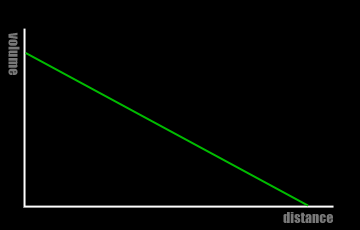
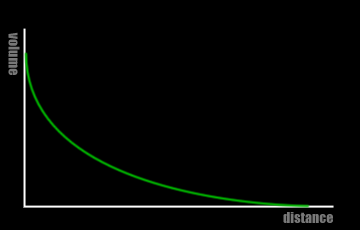
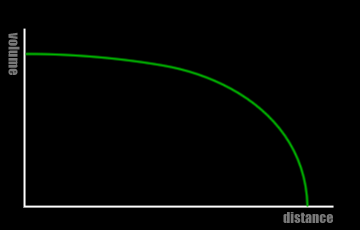
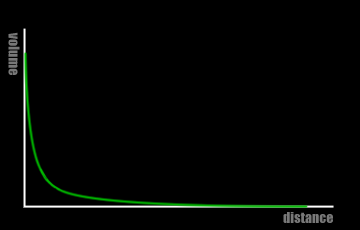
There are four different types of falloff supported for sound effects (graphs are drawn approximations, not rendered by actual graphing software):

cogmind_sound_falloff_linear

Linear. Good for sounds heard over a large area, to make it easier for the listener to gauge distance from the source.

cogmind_sound_falloff_log

Logarithmic. Good for continuous complex environmental sounds like wind through trees.

cogmind_sound_falloff_reverselog

Reverse Log. Loud sounds like the core of an explosion or gunfire.

cogmind_sound_falloff_inverse

Inverse. For sounds heard clearly up close, but at any distance beyond that only give a hint that they’re nearby. Works well for terminals and machines with softer sounds.

I tend to use linear falloff for most non-looping event sounds so the volume holds more meaningful information for the player in terms of relative distance, and rely on log and inverse falloff as necessary for looping ambient samples to make them sound realistic as you approach/leave them. Believe it or not, it’s not only 3D games in which there’s a noticeable distinction--it even matters when exploring a grid-based 2D world!

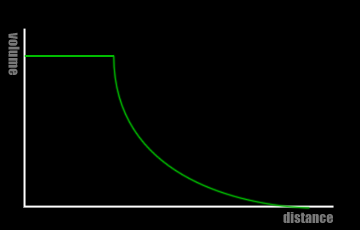
Two other important parameters set for each sound are the min and max radius. Max radius is obvious--beyond that the sound is not heard at all; min radius defines the area within which the sound is heard at full volume, i.e. before falloff starts to take effect. When graphed this creates a plateau near the source:

cogmind_sound_falloff_log_plateau

Logarithmic falloff w/min radius plateau.

The sample sound seen in the debug shots further above uses a min radius of 2, hence the bright areas surrounding the sources.

The Complete Soundscape (2020)

Update: Years later, Cogmind has a complete ambient soundscape with both map-wide audio as well as localized audio from all machines and other relevant sources using the techniques described above. You can read more about the system here.

Posted in Design | Tagged , , , , , | 6 Responses

Animation vs. Pacing: A Dilemma of Modern Roguelikes

One of the nice things about traditional roguelikes is you can play a game at any pace you like. Turn-based action means you can stop and contemplate your next move as long as you like, but at the same time instant feedback from actions means you can string them together as fast as you can type.

Unfortunately this advantage of instant feedback also implies the game is missing out on one of the more atmospheric methods of presenting the game world through something other than text and gameplay: action animations.

Modern graphical 2D roguelikes tend to use at least some quick animations, but even that slows the game down, and they’re often not worth the cost in player wait time--especially once they are familiar to the point of boring. The DCSS tiles approach (as one example) of everything still resolving more or less instantaneously and leaving the text to provide the most of the details is much more engaging than seeing a little sprites pop up over every single actor and/or target in turn, making it easy to quickly dispatch lesser threats while avoiding boring repetition.

In the earliest CRPGs encounters and actions were always quick to play out, but at the time that was the only choice due to hardware limitations. With today’s graphical capabilities, it’s understandable that businesses will rely on eye candy to maximize their profit, even if it does get boring after a while. After all, only rarely do games sell based on lasting appeal; strong sales are based on screenshots, trailers, and first impressions. This is one reason a game with that solid traditional roguelike feel is unlikely to ever evolve beyond the indie segment.

Animation in Cogmind

Cogmind subscribes to the minimalist approach in that movement and nearly every other action in the game is resolved quickly enough to be considered simultaneous for all units (from the player’s point of view), despite being a turn-based game. At the same time, the desire to attract a wider audience means we should look for ways to give it a more general visual appeal.

GUI animations help a lot in this regard, and while ubiquitous, they’re always fast to make sure they don’t slow the player down in any way. Some of the animations can be seen in various previous posts, such as here and here (relevant .gifs copied below).

cogmind_item_info_cycling

Opening item info is more or less instantaneous, but this looks far better than if it all simply “appeared” (gif is missing some frames, but you get the idea).


cogmind_help_open

Opening item info context help. All animations are also accompanied by sound effects, enhancing the immersion.

The part of the gameplay itself most worth slowing down a bit to take advantage of the ASCII particle effect engine is weapon effects and explosions. Once polished and accompanied by sound effects, these contribute significantly to the atmosphere.

There is a bit of a dilemma even there, though, since seasoned players of traditional roguelikes will soon complain about too much slowdown during firefights (some 7DRL players did precisely that). The game’s focus on ranged combat would be one reason this is a more acute problem with Cogmind, as projectiles actually have to trace their way to targets. The likely solution in this case will be to speed up animations for any gunfire that isn’t spectacular (or at least interesting) while allowing sufficient time for the more impressive and possibly less frequent effects. One useful feature of slower projectiles is the slight amount of tension created as you see one flying towards its target and don’t quite know yet whether it will hit, though that’s not reason enough to slow them all down.

This is an even bigger issue with the new Cogmind, since the addition of allies and multiple factions means you can now come across (or initiate) larger fights more often. As you can see in the .gif showing allied combatants in an earlier post, it could be quite tedious when simply trying to maneuver around an ongoing conflict, having to stop every couple steps while others fire their shots in turn. (I must say the Cogmind I was using there was very slow though, so under normal circumstances they wouldn’t get to fire quite so much.) Seeing as those are unimpressive pew-pew lasers, they’ll be sped up when it’s time to playtest.

Another solution, this one rooted in gameplay design, would be to reduce the number of shots required to kill things (or increase base accuracy), but those changes would leave too little room for variation in weapon, enemy and encounter design, so they’ll likely remain roughly the same.

In summary, there’s a difficult balance to control between animation and flexible pacing.

Exploring this idea further into the guts of the game, it turns out it’s not just a design dilemma--it’s also going to be the biggest technical issue to solve, which is why I brought this topic up in the first place.

Technicalities

Having established that we want combat animations, and that we also want allies and other factions, a bit of a conflict arises… With large maps and plenty of places and robots not in your general vicinity, there could be fighting going on that you can neither see nor hear, and that certainly shouldn’t slow you down while it plays out.

This implies the game now needs two ways of handling combat: In one, visible combat actions are handled normally with real-time animation, and in the other all the gunfire and explosions must be carried out instantaneously.

The question then becomes how to easily determine what is and is not visible/audible, and write a whole new system for handling anything that needs to be played out instantly.

This is not nearly as easy as it first seems. Since all animatable events are processed through their own state machine, earlier states would need to predict future states to determine if any part of the action is known to the player. Thus each individual part of these state machines needs to broken up and externalized to become capable of performing all parts of the action at once, if deemed necessary, after making all the appropriate predictions. (Aside from being a pain to code, this is going to mess up the elegant state machine architecture :(

One common solution for handling non-local events like this is to simply simulate any actions not in view and apply the results. That’s not an option here because there’s simply too much necessary detail in the combat effects that would be impossible (and undesirable) to simulate, not to mention the difficulty of doing so while keeping things advancing on a proper time scale as you go about your business. Maps aren’t that large, anyway (no larger than 200×200), so simulation isn’t required--It’s a solution more suited for games with massive continuous maps.

My notes on the subject have been re-worked a couple times over the past month, ballooning significantly each time with exceptions and special cases to think about. The final solution will no doubt have to cut some corners, but hopefully these will still be transparent to the player.

The good news is this is the last bit of internal nonsense to deal with before finally entering the “make a game” stage! Almost time for the real fun to start…

Origins

If you’re wondering why the system was designed like this in the first place such that it could cause this problem: The engine was originally built for an X-COM remake, which uses small maps on which entire factions take their actions in turn. In that kind of environment you can generally hear most of what’s going on, if not see it, and even the silent parts while waiting for opposing factions to do their thing are a great source of tension. In Cogmind, as a lone player character it would just slow you down and be annoying. The 7DRL prototype didn’t suffer from this problem since you were the only enemy that could provoke combat!


Addendum 1/12/14

Today I implemented the solution and after some preliminary testing it seems to be working nicely. You can walk along just fine while large-scale battles rage on elsewhere on the map. I also managed to hack it into the existing state machine with minimal collateral damage, and only used one of those much maligned “goto” statements in the process ;)

At the most basic level there are only two types of animation in the game: shots and explosions. They’re now filtered more or less using the same method:

  1. If the origin is visible or audible the entire shot/explosion is animated normally.
  2. Else if any part of the LOF to point of impact (or final AOE for explosions) will be visible, the entire shot/explosion is animated normally.
  3. Else instantly apply the shot’s effects at the point of impact (or explosion’s effects to all objects and terrain within the area of effect).

Because it’s not possible to know in advance (i.e. at the time of shooting/explosion) whether a final effect will audible until that effect is fully applied (the process is too complex to predict everything beyond the LOF/AOE state), the game will also pause action for as long as it takes to play any resulting audible sounds such as impacts and destruction. This means you’ll still be able to hear nearby combat that may not be visible, and if there are numerous sounds from sequential turns they won’t all be mixed together in a jumble of noise.

There’s still some more testing and tweaking to do, but at least the solution took a lot less time to implement than it did to mull over the possibilities.

Posted in Internal | Tagged , , , | 6 Responses

Part Info Visualization Modes

I recently entered “tired of seeing notes about future tasks that could easily be done now” mode, wherein every few weeks I attack all those little comments that have piled up here and there while working on bigger features (most recently hacking).

One result was the addition of new visualization modes for data about your attached parts. Recall the original GUI mockup showed what was the only such visualization implemented before now: relative coverage.

cogmind_visualization_coverage

(Right) Parts with longer bars are more likely to be hit by incoming attacks.

Now you can quickly and easily compare parts based on several different criteria by changing the mode.

cogmind_visualizations

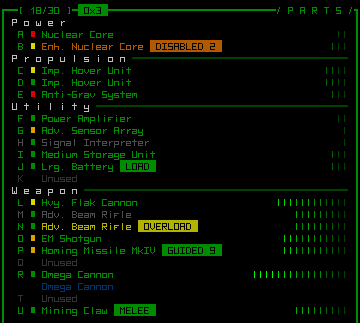
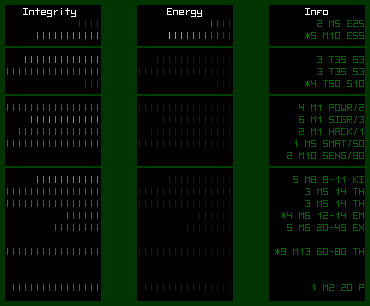
New visualization modes (lifted from the mockup, though all of these features are now in the game).

Integrity mode is pretty straightforward, giving you a more accurate and obvious visual representation of a part’s remaining integrity. Energy mode shows the power generation or consumption for a part, with generation shown in cyan and consumption shown in blue (gray is for deactivated parts). Info mode prints type-specific vital stats, the meanings of which will become apparent very quickly while playing (these are the same abbreviated stat strings shown in the remote scan window)--for example, the first category (power sources) show the source’s rating followed by its mass (M) and energy output (E).

Mode cycling is controlled by key commands or buttons that now appear at the bottom right of the parts console. Visualizations are also shown for parts listed in the inventory console.

Posted in GUI | Tagged , , , , | Leave a comment

Recycling Units & Repair Stations

An introduction to two more interactive machines for dealing with used parts.

Recycling Units

cogmind_interactive_recyclersAt a recycling unit you can insert parts from your inventory to be broken down into reusable matter, so they’re basically an additional way to get access to matter besides attempting to blow up robots with as little collateral damage as possible (remember that explosive-happy Cogminds will not leave much in the way of usable salvage, though they’ll need a lot of it to supply their weapons with ammunition).

Recycling a part is instantaneous, but the matter produced is contained within the the machine itself until you hack it to retrieve its contents. On retrieval the matter goes to your storage, or is placed on the ground if you have insufficient capacity.

cogmind_recycler_targets

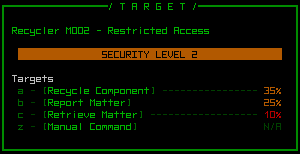
The basic recycling unit interface. (A note about percentages: While formulas exist for calculating them, all hacking values are untested and will require tweaking for balance.)

Now that we have recycling units, recycler bots finally have somewhere to take their stuff! They used to just wander around once their inventory was full--now they’ll take it all to the nearest recycling unit for processing. After a given recycling the unit reaches a certain matter quota (dependent on its size), it will all be transferred away for use elsewhere, so you’ll want to retrieve it before that happens.

It used to be that after cleaning up a battle site recyclers essentially became haulers wandering around until you decided you wanted whatever they might be carrying. Now you’ll have to catch them before they make it to the recycling unit! It’s always fun to be in a pitched battle with combat bots and see a group of recyclers descend on the area and start hauling off your loot before you can get to it. (Personally I tend to pick up important parts even in the middle of battle if near enough.)

Repair Stations

cogmind_interactive_repair_stationsWhile there are a lot of parts out there to re-build yourself with, you may have a specific few that you just can’t do without, usually because they’re key to your style of play and/or difficult to find.

That’s where repair stations come in.

cogmind_repair_station_targets

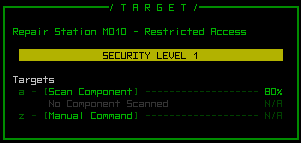
The basic repair station interface.

To repair a part, select one from your inventory to scan it for damage, then initiate the repair process. Repairing restores a part’s integrity, as well as shorted circuits or other common causes of malfunction. Repair stations cannot repair faulty prototypes or deteriorating parts, nor can they repair Cogmind’s core (only evolution restores core integrity).

Like fabrication, repairing also requires time to complete, so you’ll have to risk hanging around the machine, or come back later to pick up the repaired item on completion.

Repairing prototypes and more advanced parts will require more time as well as a higher-level repair station.

Posted in Mechanics | Tagged , , , , , | Leave a comment